
Step-by-step instructions on how to set up an automatic email reminder for parents for incomplete applications.
Set Up the Email Template
For full details on how to create an automated email please click here: Create Automated Emails
- Email Settings > Templates > Custom > Add
- Create a Primary Carer Custom template to provide a reminder if they have started but not completed an application. It is suggested that the name of the template is ‘Incomplete Application Reminder - Automated (Primary Carer) - 7 days’.
Copy and paste directly into the template
Dear {{ user_parent.title }} {{ user_parent.last_name }},
We have noticed that you started an application for enrolment for {{ profile.first_name }} but are yet to complete it and we want to let you know that we are here to help.
You can continue your application at any time by logging into your parent dashboard with your {{ user_parent.email }} email address.
If you have questions about the college before completing the application, please let us know. If you are experiencing technical difficulties, feel free to get in touch by giving us a call on {{ campus.telephone }} or by replying to this email and we will walk you through the process.
We hope to hear from you soon.
Kind regards,
{{ school.settings.registrar_name }}
Create an Automation
Create an Automation
To read how to create an automated email please click here: Create Automated Emails
Go to Automation > Add
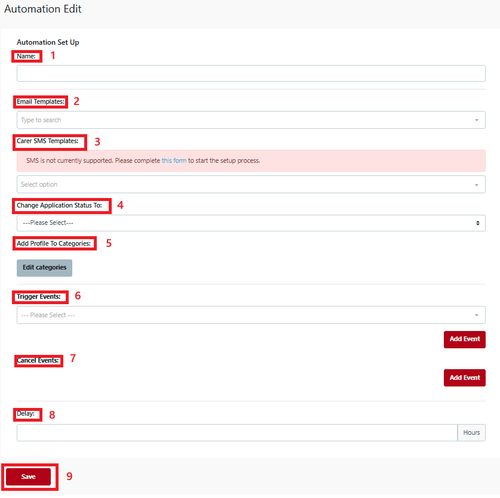
- Name - such as ‘Application Incomplete’ that makes it easier to identify and is internal.
- Email Template - select your template from the ‘Custom Template’ dropdown so the email goes to Primary and/or Secondary Carer.
- Carer SMS template - select your template from the ‘SMS Template’ dropdown so the SMS goes to a parent if applicable.
- Change Application Status to - select the Enrolment Journey stage this Automation will move the student profile to (e.g. if Pre-interview form is received - change stage to Interview).
- Add to Student Profile Category - you can add settings to the Student Profile Category using the Automation process.
- Trigger Event - select ‘Application Started’.
- Cancel Event - select 'Application Submitted/Paid'.
- Delay - Set for 168 hours (7 days). This means the email will be sent to the parent 7 days after the application has started but not submitted.
- Save.
Choose Automation Recipients allows you to select specific groups to which the Automation will apply (optional).
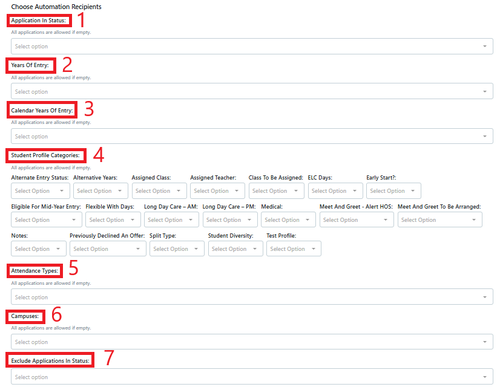
In an Automation all of these selections are optional
- Application in Status
- Years Of Entry
- Calendar Years of Entry
- Student Profile Categories
- Attendance Types
- Campuses
- Exclude Application in status
- Save
The Automation timing only works when the trigger has not passed.
If you have had an Application Started but not completed/paid and the automation was not yet in place then it will not send the reminder and will have to be completed manually.
Note: An incomplete application reminder should always have a Cancel Trigger that ensures the reminder is not sent if the application has been completed/paid.