
Step-by-step instructions on how to set up an automatic interview reminder for parents to notify them of an upcoming interview.
Set Up the Trigger Time
- Interview > Settings > Trigger PARENT Reminder - this number of hours before an interview
- Set this to the desired values
- Save
You can also set this up directly from Automations.
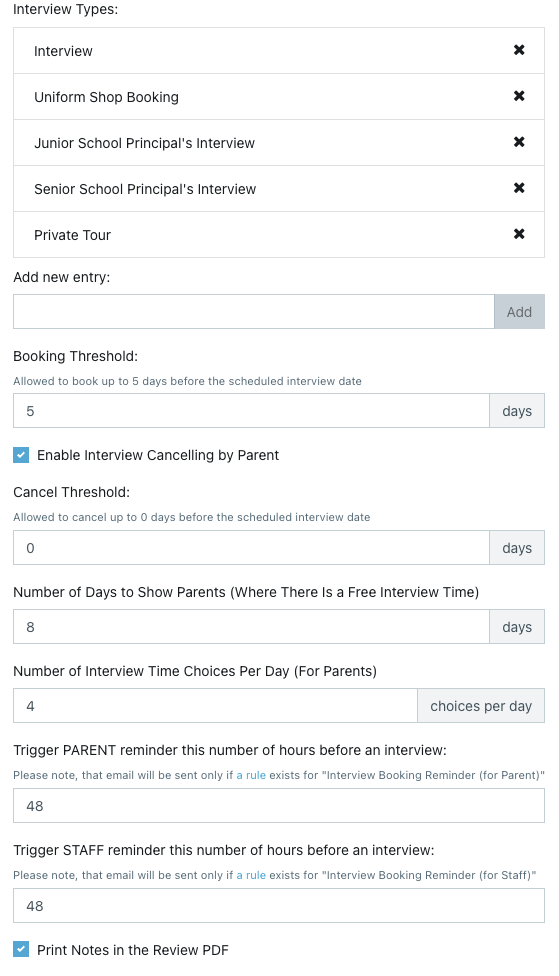
Note: 48 hours is 2 days
There is also a trigger reminder for staff (catering, security etc).
The automation timing only works when the trigger has not passed.
If you have had an interview booked but the automation was not in place then it will not send the reminder and will have to be completed manually.
Also:
If the interview was booked after the automation timing has passed then then the automation will not send the reminder
Note: An interview reminder should always have a Cancel Trigger that ensures the reminder is not sent if the interview is cancelled.
Set Up the Email Template Primary Carer
- Email Settings > Templates > Custom
- Set up a Primary Carer custom interview reminder email to send to parents
Note: you can setup a secondary carer reminder as well and add both to the Automation
Copy and paste directly into the Template and add your school specific language/vernacular:
{% if second_parent.last_name and first_parent.last_name == second_parent.last_name %}
Dear {{ first_parent.title }} and {{ second_parent.title }} {{ first_parent.last_name }}
{% else %}
Dear {{ first_parent.title }} {{ first_parent.last_name }} {% if second_parent.last_name %} and {{ second_parent.title }} {{ second_parent.last_name }}{% endif %}
{% endif %}
This is a friendly reminder that the interview for {{ profile.first_name }} is tomorrow. You and your {{ profile.gender }} will be meeting with {{ interview_booking.interviewer.name }}.
{% render_location_details interview_booking.location hints=True %}
Date: {{ interview_booking.date_time_str }}
{% if interview_booking.online_meeting_link %}Your Online Meeting link is {{ interview_booking.online_meeting_link }}{% endif %}
Create an Automation
To read how to create an automated email please click here: Create Automated Emails
- Automation > Add
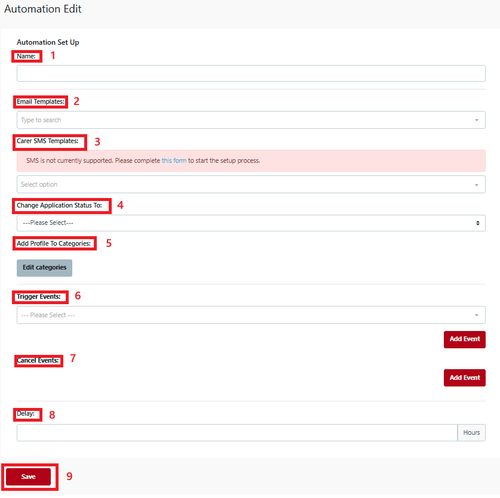
- Name - a name like ‘Interview Reminder (2 days)’ this makes it easier to identify and is internal
- Email Template - Select your template from the ‘Custom Template’ dropdown so the email goes to the Primary Carer
- Parent SMS template - Select your template from the ‘SMS Template’ dropdown so the SMS goes to a parent if set up
- Change Application Status To - not applicable
- Add to Student Profile Category - not applicable
- Trigger Event - select ‘Interview Reminder for Carer’ Select Interview Type. Note: If you have more than one type of interview you will need to add multiple trigger events
- Cancel Event - this is not required for staff notifications
- Delay to be 0 hours. This means the email will be sent to the Carer according to the Trigger
- Save
Choose Automation Recipients allows you to select specific groups based on the options shown (optional)
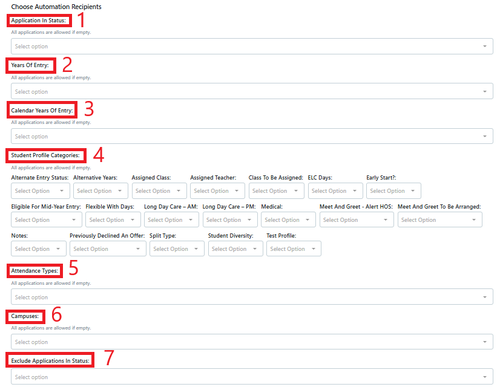
In an automation all of these selections are optional
- Application in Status
- Years Of Entry
- Calendar Years of Entry
- Student Profile Categories
- Attendance Types
- Campuses
- Exclude Application in status
- Save
The automation timing only works when the trigger has not passed.
If the automation was not in place then it will not send the reminder and you will have to complete the steps manually.