
We hope you find these EnrolHQ tips and recommended steps helpful in the Application Tab section.
Re-Open Form
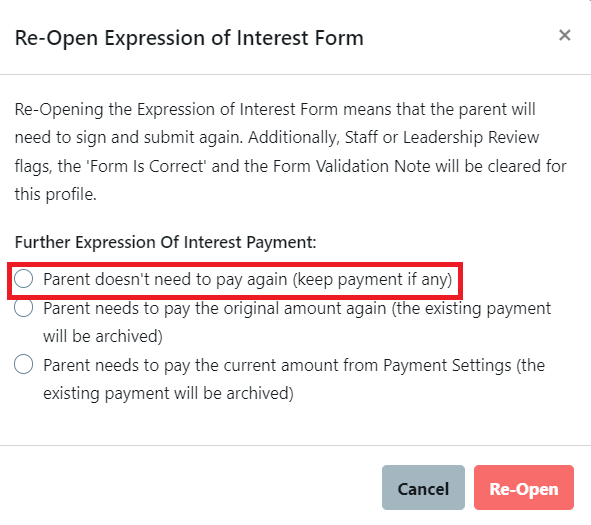
By clicking on Re-Open the Form the form will open back up in parent's Enrolment Dashboard will all previous answers intact. The parent can then go through the form and change their answers. They will accept the conditions/sign the form again when it has been reopened. When you re-open the form you must choose from the three options to ensure the parent is given the correct payment option.

This example if for an Expression of Interest Form, however the options are still the same.
Payment
Parent Will Pay Fee Of is used to enter a custom Enrolment Application Form Fee. There will be situations where parents may make a payment directly to the school by going to the finance office in person, or finding another payment portal on the school website and making a payment before they come to the online enrolment form. Sometimes you might waive the fee altogether because, for example, you have found out the parent is an ex-student. In these cases, you could put $0 in the ‘Parent will pay Form Submit Fee’ field and it will waive the parent from making an online credit card payment for the enrolment application before submitting it.

Invite to Apply
There is a setting inside Custom Forms Stubs that allows schools to choose if an application is available for all or if they must be invited.
Go to Custom Forms > Application
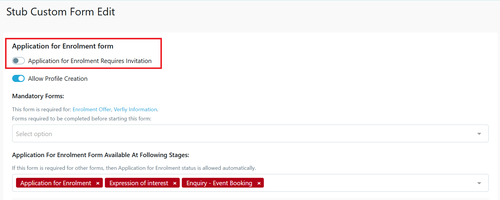
Once this option is turned on then Admin staff will need to send and Invite option from the Student Profile Admission Tab
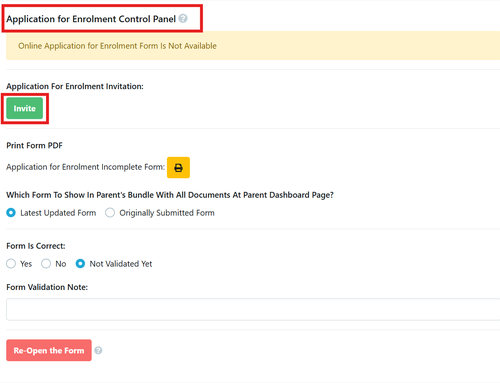
Once selected the linked Email template will be displayed for edit prior to sending
Note: template is found in Email Settings>Templates>Application>Invite to Apply

Payments Record
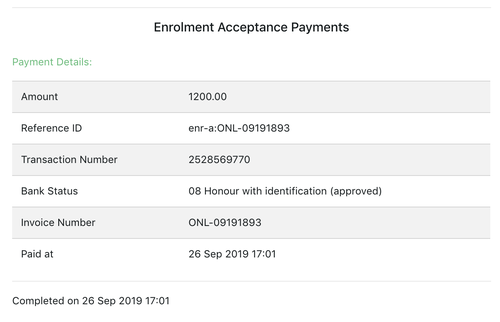
There are Payment Records for the student record enrolment process. You will see payment details for the initial Enrolment Application Form and Enrolment Acceptance. For each payment EnrolHQ will record the following Payment Details
Secondary Parent Acceptance
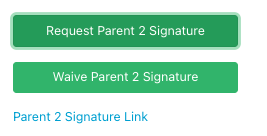
Most schools want both parents to sign the application form. If Parent 2 is not available to sign, EnrolHQ has a setting that asks for Parent 2 signature. Parent 1 has at this point already completed, paid and signed his or her part of the application. By clicking on Request Parent 2 Signature the second parent gets an email with a link to sign his or her part of the enrolment form completely separately from Parent 1.
In rare cases, for example where there is a court order or Parent 2 is deceased, then you will need to click Waive Secondary Parent Acceptance. This will change the acceptance form so that only Parent 1 is required to accept and pay the fees for the enrolment to be completed.
Application Progress Box
The Application Progress box shows the process parents have completed. This provides a quick overview of how far the future student has reached in your school's application process up to the time the application has been reviewed by the school.
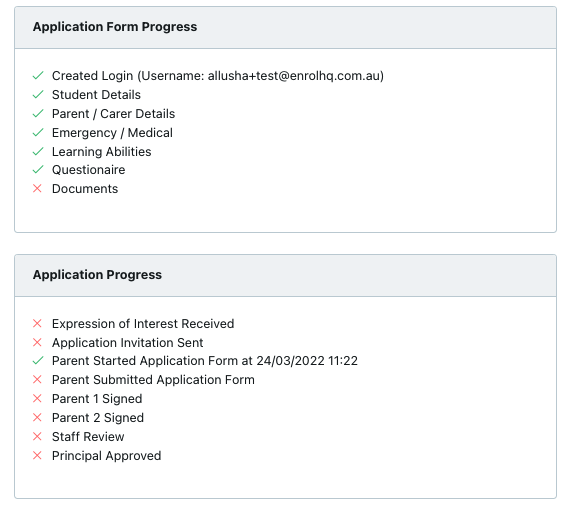
- Expression of Interest Received - many schools only allow EOI Forms to be filled in more than 2 or 3 years out from the calendar year of entry
- Application Invitation Sent - if activated, shows when the invitation to apply is sent out
- Parent Started Enrolment Application Form - shows date that parent started a form
- Parent Submitted Enrolment Application Form - shows date that parent completed an enrolment form
- Staff Review - shows the date that enrolment was reviewed by school admin team
- Principal Approved - shows the date that the enrolment was approved by the Principal or leadership team
As each stage is ‘passed’, there will be a checkbox to mark complete and also the date (and time) it was completed.
Printing Enrolment PDF Bundle
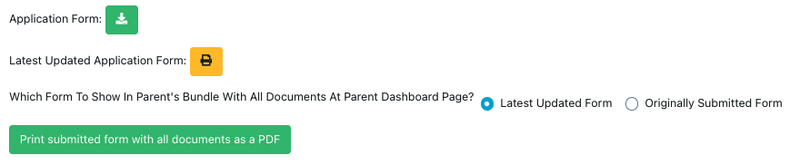
The green button labeled Print submitted form with all documents as PDF will print the enrolment form in PDF format and any document uploads the parent has made like birth certificates, passport, visa, immunisation history statement together.
This bundle keeps getting added to or revised as the parent moves through the process. For example, if the parent was to re-upload documents, or accept an offer, then the PDF bundle that is downloaded is updated with the new documents. Keep coming back to this green button to download the latest version of the Enrolment PDF Bundle.
Manual Application Submission
Manual Enrolment Submission Date is used by schools that are transitioning from paper-based forms to EnrolHQ and have a portion of their enrolment applications for a particular year group submitted on paper. To preserve the original application dates for these paper application, use the ‘Manual Enrolment Submission Date’ fields which will override any online submission dates recorded in the system for this record. This will preserve the paper enrolments place in the priority queue.
Next, you will see the date and time the Online Enrolment form was started and following that, the date and time the form was submitted.

Application Form Progress Box
On the right sidebar, there is an Application Form Progress box to see how much of the form parents have completed.
The application form doesn’t allow parents to skip through the steps on the first time they fill it out. The form will ask parents to fill out all mandatory fields or upload mandatory documents before allowing them to the next step. By seeing where they are at, you can choose to follow up with parents (who are in the ‘incomplete application’ stage) who’ve reached the later stages of the form i.e “Document Uploads” or “Learning Abilities and Further Information”.
Form Validation and Custom Form Submission Fee
Form is Correct is where you will review the answers provided by the parent to make sure the form has been filled correctly. Common mistakes include putting in the wrong DOB (doesn’t match what’s on the Birth Certificate), choosing the wrong calendar year of entry making the child too young or too old or filling out the MCEETYA data incorrectly.
If you see that the form has been filled out incorrectly, you can put a ‘No’ for the Form Is Correct question and a ‘Form Validation Note’ underneath that to explain which questions were filled out incorrectly. You can then come back to this enrolment student profile later after following up with the parent to get the correct answers to enter the correct details.
Marking a form as incorrectly filled out will also make the student profile show up with a red X in the ‘Form Correct’ column on the Enrolment review screen.
